← PasteFilter home · All installation options
WINDOWS DESKTOP · ADVANCED TEST
Install PasteFilter in Excel for Windows
Use the installed Windows desktop version of Excel with the same hosted PasteFilter add-in. This setup takes a few more steps than Excel for the web.
Microsoft documents the shared-folder catalog method for testing Office add-ins and explicitly does not support it for production deployment. Do not use this procedure on an organization-managed computer without IT permission or change security policies to bypass restrictions.
Download PasteFilter XML manifest
The XML is a small configuration file, not a Windows application or executable. It points Excel to the PasteFilter website, where the task-pane code is hosted. Simply double-clicking the XML file will not install the add-in.
Before you start
- You need Windows, desktop Excel that supports Office web add-ins, and access to the internet.
- Only continue on a computer where you are permitted to configure a folder share and an Office Trusted Add-in Catalog.
- Use a test workbook; never use confidential employer data without authorization.
- These steps use the Windows shared-folder testing method, not PowerShell, developer tools, or a custom installer.
Illustrated Windows installation
These are screenshots from a test computer. Your Windows account, computer name, Excel version, and window appearance will differ. Follow the steps below using your own settings—not the sample network path displayed in the images.
1. Prepare a shared folder for the manifest
- In Windows File Explorer, create a folder named
PasteFilterin a location you control (for example, your Documents folder). - Copy the downloaded
PasteFilter.xmlintoPasteFilter. - Right-click the folder → Properties → Sharing → Share.
- Share the folder with your own Windows user account (and only other specifically authorized users, if needed). Microsoft's testing documentation specifies Read/Write access for the share. Avoid granting broad public access.
- After choosing Share, copy or write down the network path Windows displays. It resembles
\\YOUR-PC\PasteFilter, but use the exact path shown on your computer.
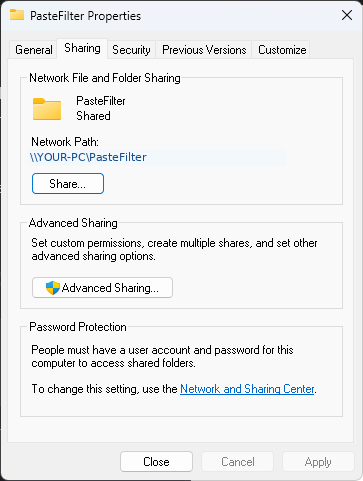
\\computer\share) in the catalog setting. A normal path like C:\Users\...\Documents or a website URL is not a substitute for this test method. If Windows will not allow the folder to be shared, stop here rather than disabling firewall or organizational security controls.2. Tell Excel to trust that specific catalog
- Open the desktop Excel application and create a blank workbook.
- Go to File → Options → Trust Center → Trust Center Settings → Trusted Add-in Catalogs.
- Paste your folder's network path into the Catalog Url field.
- Click Add catalog, then enable Show in Menu for that catalog.
- Confirm with OK, close Excel completely, and reopen it.
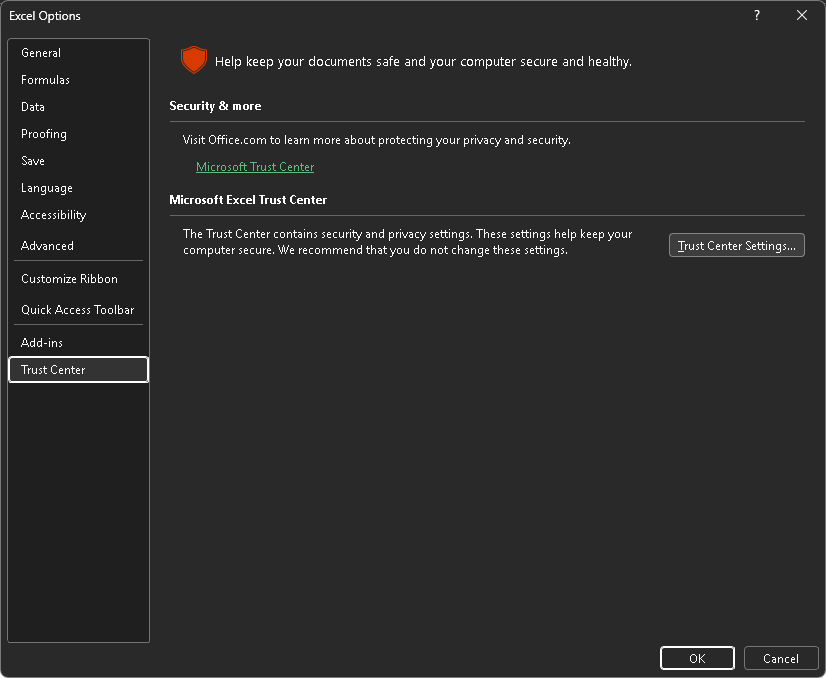
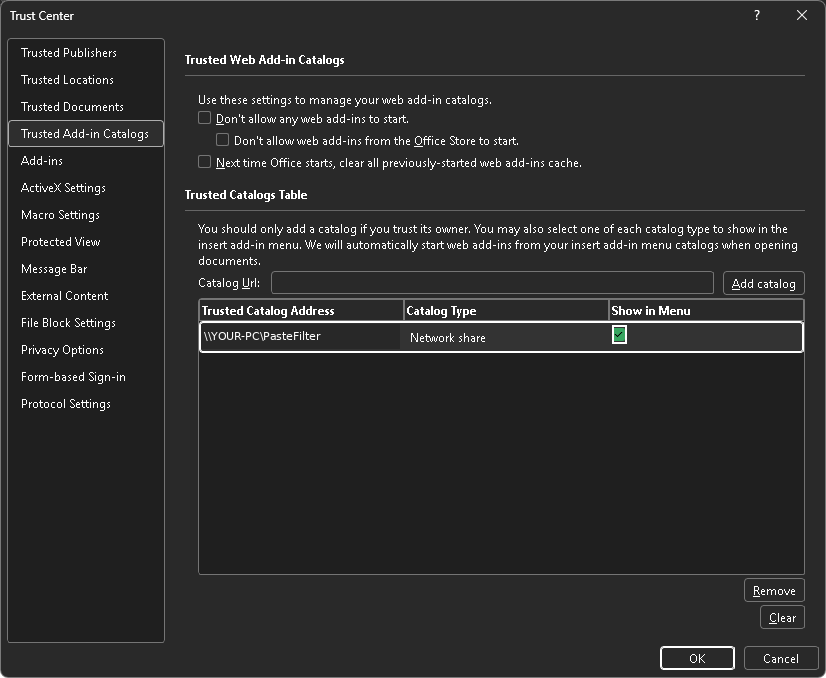
Trust only the catalog folder you created. Do not add unrecognized locations or turn off Excel's security controls.
3. Add PasteFilter to desktop Excel
- Open a blank or sample workbook in desktop Excel.
- Choose Home → Add-ins → Advanced (or open More Add-ins and locate the advanced/legacy Office Add-ins window, depending on the Excel version).
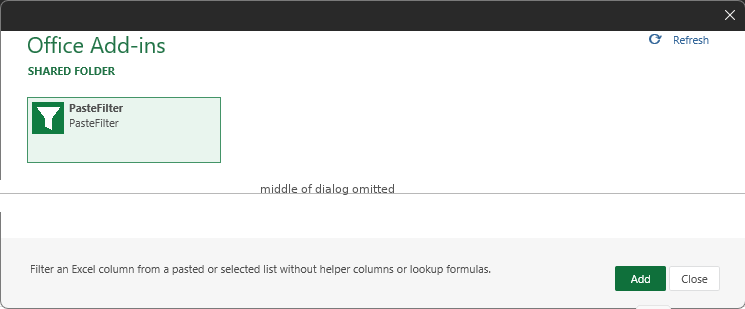
- Choose the SHARED FOLDER tab. Select PasteFilter and click Add.
- Find the green Filter by List ribbon button and click it. The PasteFilter task pane should open.
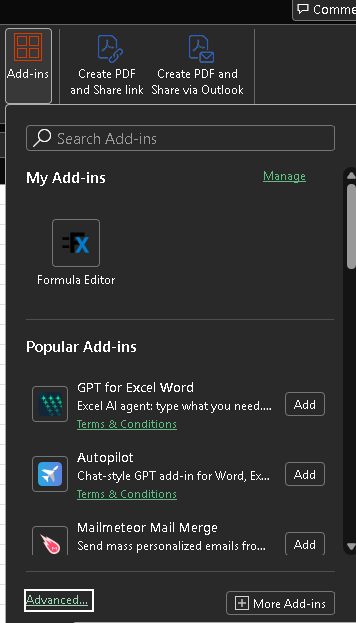

4. Verify the installation with dummy data
In a new blank workbook, paste the following starting in cell A1:
LABEL	DESCRIPTION
1234	A
213	B
2323	C
2328	D
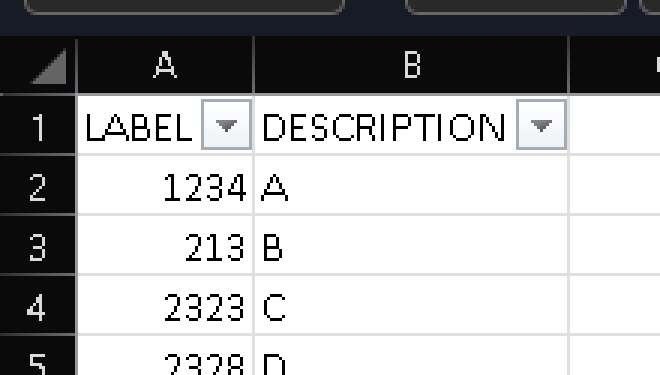
- Select cell A2 (1234) and click Use selection. PasteFilter should identify the LABEL column and four data rows.
- Type
1234in PasteFilter's list box; grey example numbers do not count as entered values. - Choose Include and click Show only listed values. Only the row 1234 / A should remain visible.
- Click Clear this column's filter. All four data rows should return.
Troubleshooting
- PasteFilter is absent from Shared Folder: Check that
PasteFilter.xmlis in the exact shared folder, that you used the full UNC network path, that Show in Menu is checked, and that Excel was restarted. - The Shared Folder tab is missing: Look under Excel's Advanced add-ins interface. If Office or your administrator restricts catalogs, ask your administrator; do not bypass those restrictions.
- Task pane reports “The requested resource doesn't exist”: This intermittent message was observed in our testing, especially with a blank worksheet. It disappeared after a valid target selection, but its root cause is not confirmed. If it persists on populated sample data, record the exact message and contact support.
- Incorrect or missing matches: PasteFilter compares displayed cell text. Check formats, leading zeros, whitespace, and that the list contains typed or pasted values.
- Updates or removal: This testing method can require reinstallation when ribbon commands change. For removal, use Microsoft's sideloading removal guidance; don't clear all Office caches casually.
Using PasteFilter in a company or team?
For permitted production use inside an organization, ask an authorized Microsoft 365 administrator to evaluate centralized deployment through Integrated apps instead of shared-folder sideloading. Administrators can assign a custom add-in manifest to approved users. Availability depends on the organization's licensing and policies.
What we've verified so far
PasteFilter's Windows desktop interface, target selection, Include filtering, and clearing all passed on our test computer. That computer already had a Shared Folder catalog configured. A fresh installation on an unrelated tester's Windows machine has not yet been verified.
Official Microsoft guidance and support
Microsoft: Sideload Office Add-ins on Windows from a network share
For questions, contact support@trendingatlas.com. Include your Windows/Excel version and the step that failed, but do not email workbook contents, private file paths, tokens, or passwords.